SQL Editor
Multi-tab queries, keyboard shortcuts, and execution plan analysis.
This guide walks you through launching SoftDB, creating a connection, and running your first query. The whole thing takes about 5 minutes.
Make sure SoftDB is installed. If not, see the Installation guide.
You’ll also need a database to connect to. Any of these work:
Launch SoftDB.
The app opens to the Connection Hub — your home screen for managing saved connections.
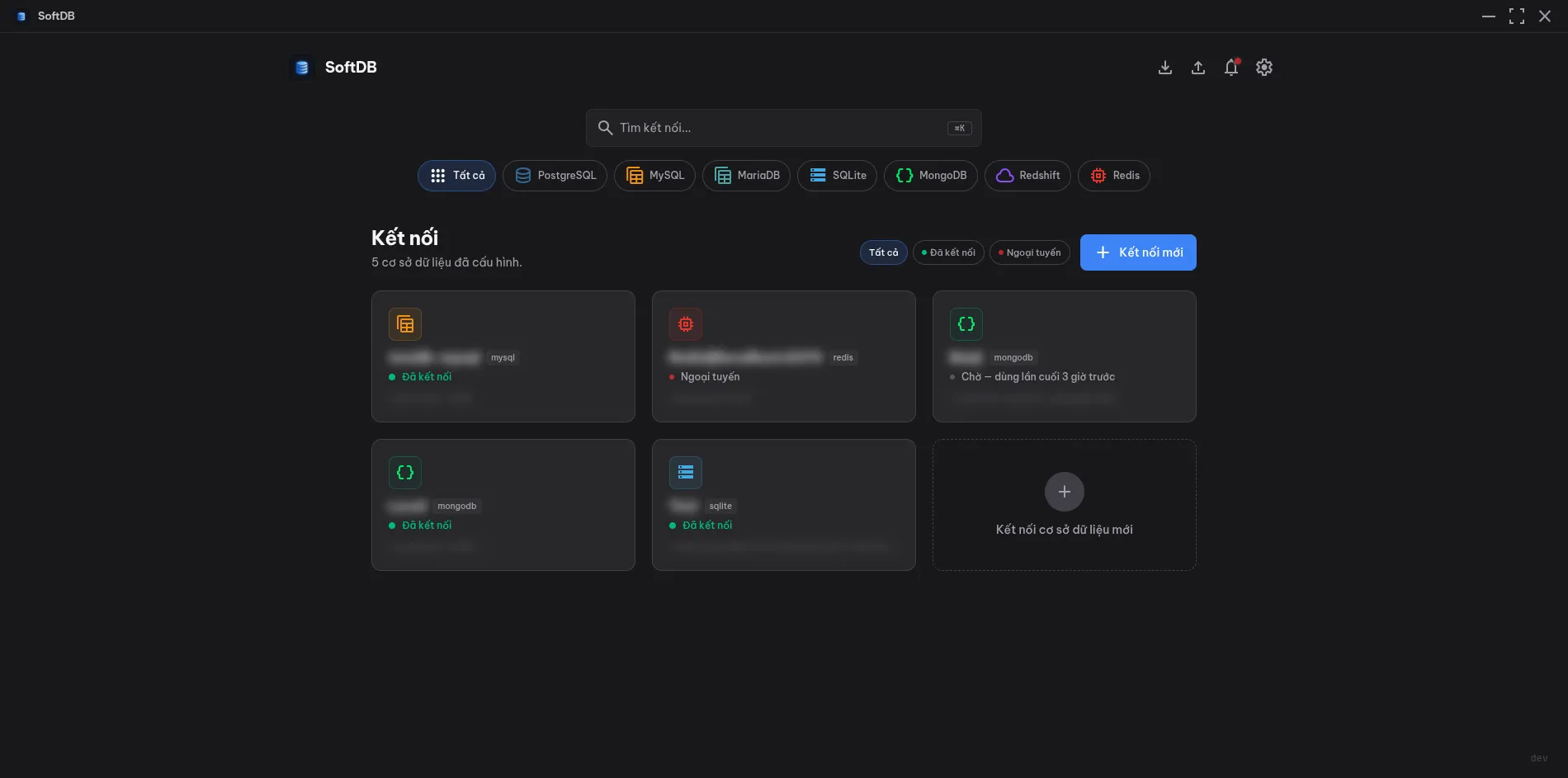
Click “New Connection”.
A connection form slides open. Fill in the details for your database:
For MySQL or MariaDB:
localhost3306For PostgreSQL:
localhost5432postgres (or your username)postgres (or leave blank to browse all)For SQLite:
.db or .sqlite fileFor MongoDB:
localhost27017For Redis:
localhost6379Test the connection.
Click Test Connection before saving. SoftDB will attempt to connect and report back. If it fails, double-check your host, port, and credentials.
Save and connect.
Click Save. SoftDB connects immediately and opens the workspace for that database.
Once connected, the left sidebar shows your database structure.
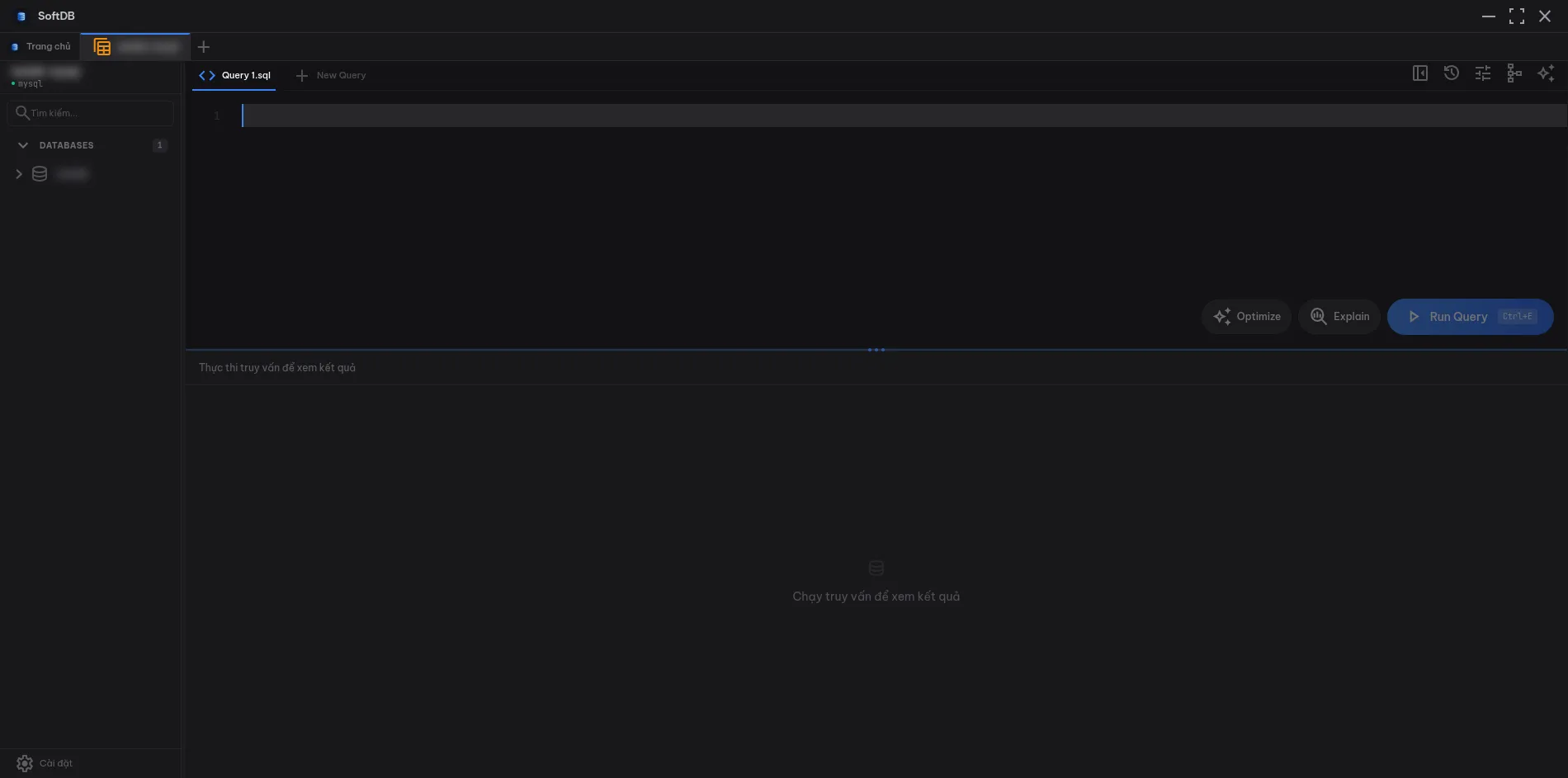
For databases that support multi-DB browsing (PostgreSQL, MySQL, MariaDB, MongoDB, Redshift, Redis), you’ll see a 3-level tree:
Connection└── database_name ├── table_one ├── table_two └── table_threeClick any table name to open it in the data grid. You’ll see the rows, column types, and can scroll through the data. The grid is virtualized, so it handles large tables without freezing.
Open the SQL Editor tab.
Click the SQL Editor tab in the main workspace area. A Monaco editor opens — the same editor that powers VS Code.
Write a query.
Type a query in the editor:
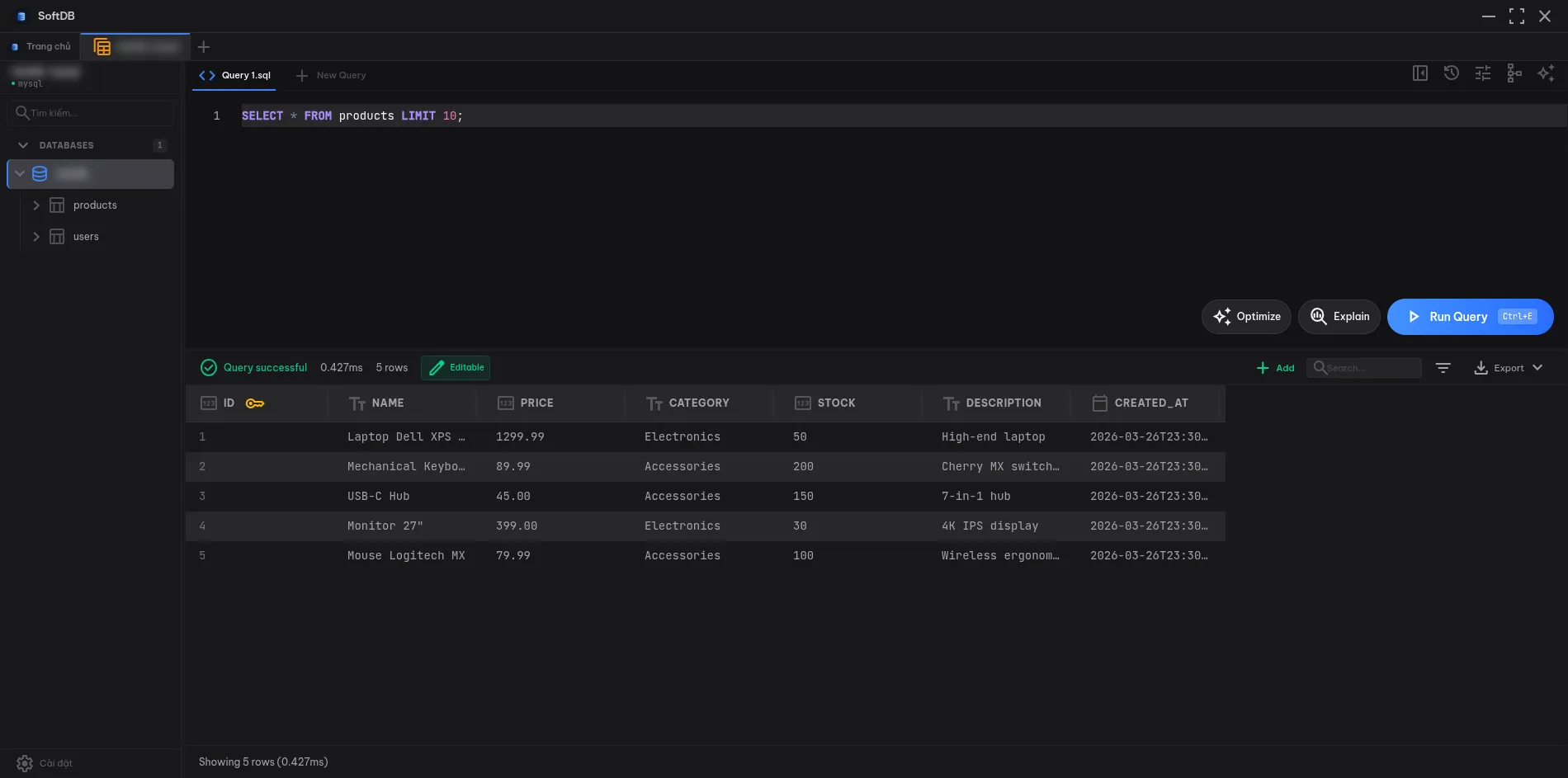
SELECT * FROM users LIMIT 10;As you type, the editor autocompletes table and column names from your live schema.
Execute it.
Press Ctrl+E on Windows/Linux or Cmd+E on macOS. The results appear in the panel below.
Try a few more queries.
-- Count rows in a tableSELECT COUNT(*) FROM orders;
-- Find recent recordsSELECT * FROM eventsWHERE created_at > NOW() - INTERVAL '7 days'ORDER BY created_at DESC;
-- Join two tablesSELECT u.name, COUNT(o.id) AS order_countFROM users uLEFT JOIN orders o ON o.user_id = u.idGROUP BY u.id, u.nameORDER BY order_count DESC;SoftDB includes a built-in AI chat panel that knows your database schema.
Open the AI panel.
Click the AI icon in the toolbar (or press the keyboard shortcut). The chat panel opens on the right side.
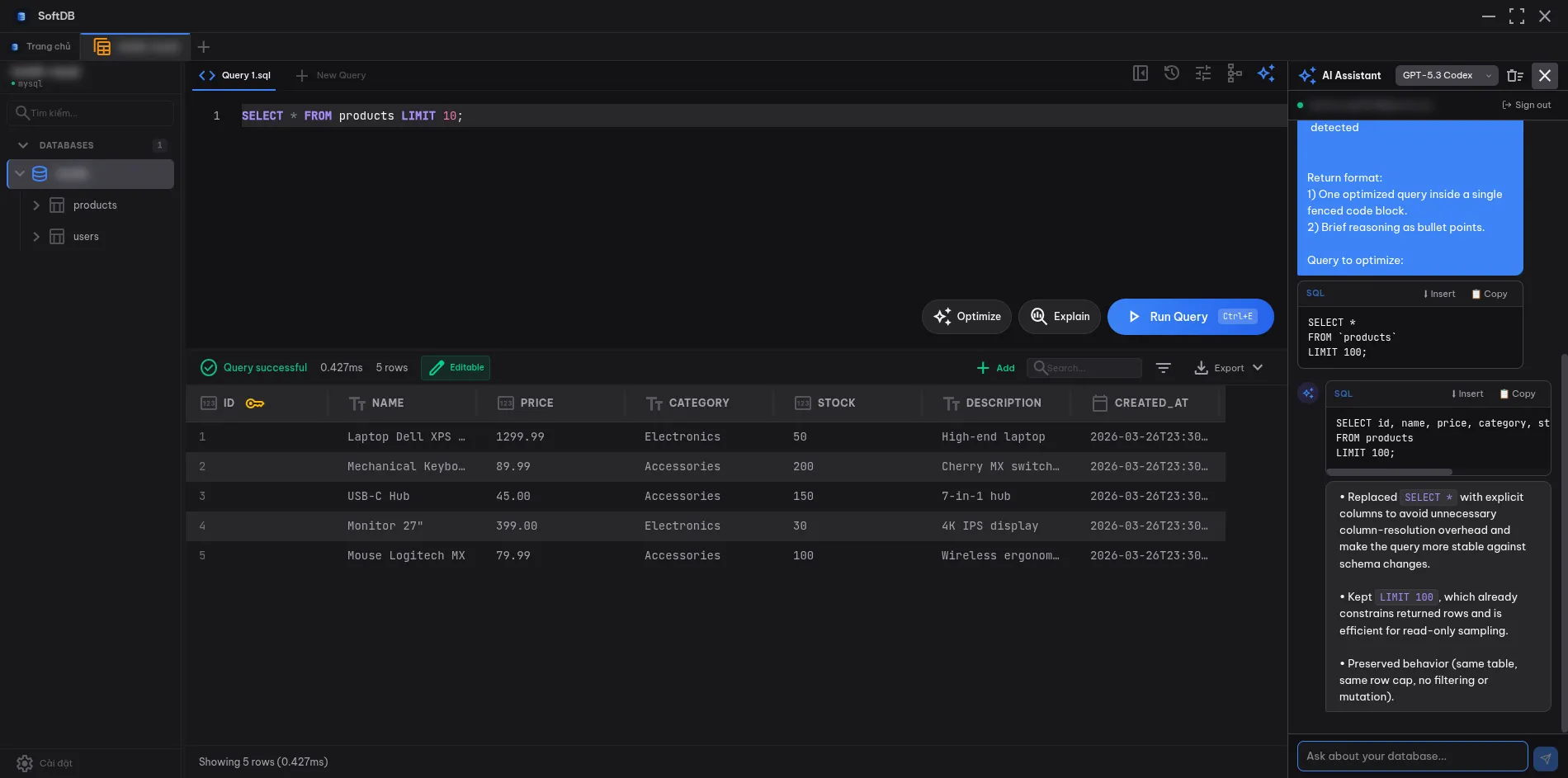
Ask a question about your data.
The AI automatically receives your schema — tables, columns, and types — as context. Try asking:
“Show me all tables with their row counts”
“Write a query to find users who haven’t logged in for 30 days”
“What indexes does the orders table have?”
Copy the generated SQL.
The AI responds with SQL you can copy directly into the editor. Click the copy button on any code block in the chat.
You don’t need to write UPDATE statements for simple edits. Double-click any cell in the data grid to edit it inline. Changes are staged until you click Save Changes, which runs a parameterized UPDATE behind the scenes.
SQL Editor
Multi-tab queries, keyboard shortcuts, and execution plan analysis.
Data Grid
Inline editing, filtering, sorting, and pagination.
AI Assistant
Configure your OpenAI API key and choose your model.
Connection Management
SSH tunnels, SSL, and connection pooling options.