SQL Editor
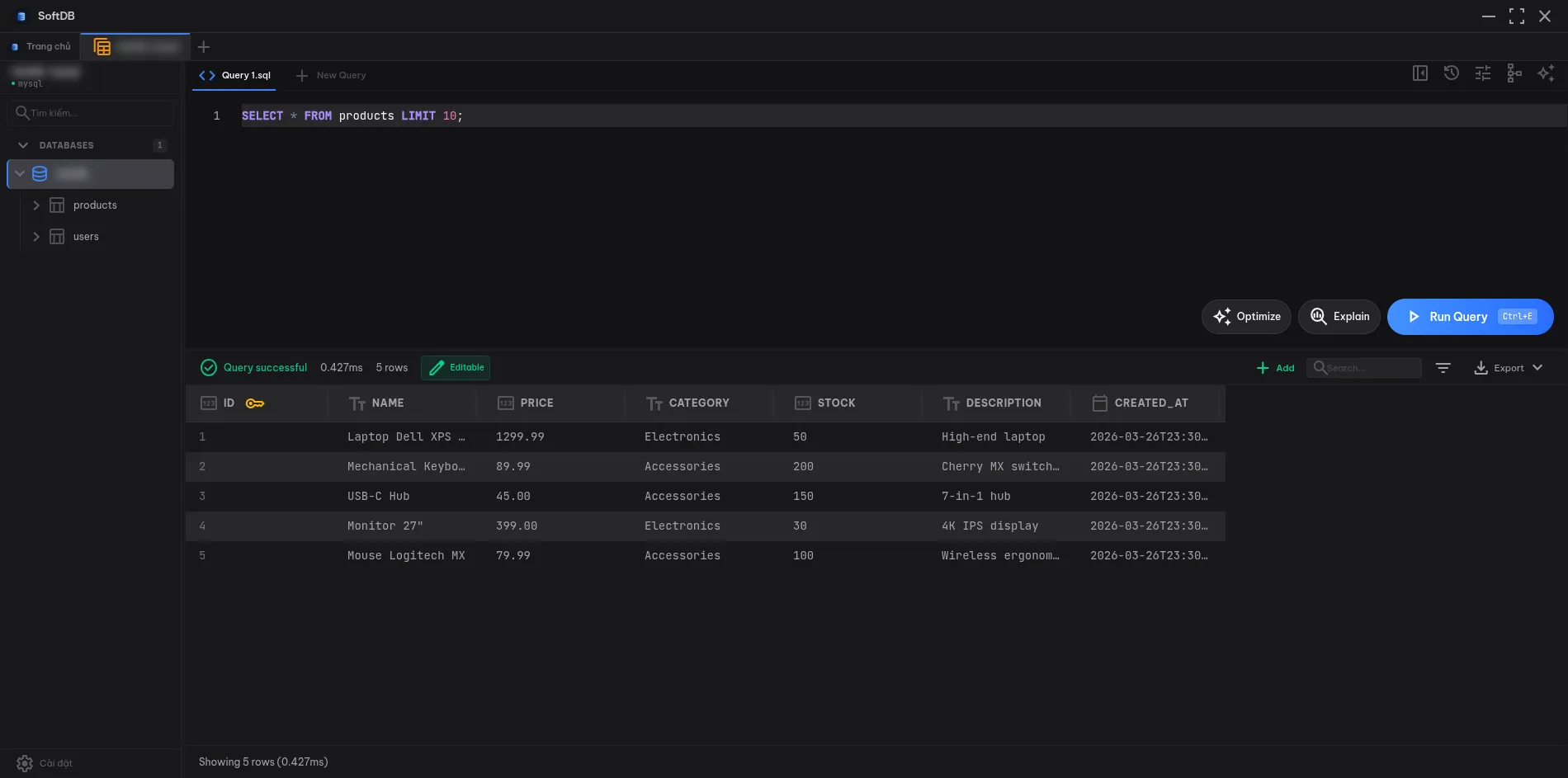
The SQL Editor is the heart of SoftDB. Built on Monaco Editor — the same engine that powers VS Code — it gives you a full-featured coding environment tuned specifically for database work.
Writing Queries
Section titled “Writing Queries”Type SQL directly into the editor. The editor supports standard SQL syntax with full highlighting for keywords, strings, numbers, comments, and operators.
Multiple statements are supported. Separate them with semicolons and SoftDB will execute them in sequence:
CREATE TABLE users (id SERIAL PRIMARY KEY, name TEXT);INSERT INTO users (name) VALUES ('Alice'), ('Bob');SELECT * FROM users;Selection execution lets you run just part of your query. Highlight any text before pressing the run shortcut and only the selected portion executes. This is handy when you have a long file with multiple queries and want to test one at a time.
Autocomplete
Section titled “Autocomplete”The editor provides schema-aware completions as you type. No configuration needed — it reads your live schema automatically.
What gets completed:
- Tables — all tables in the current connection appear as suggestions
- Views — listed alongside tables with a distinct icon
- Functions — database functions with auto-inserted parentheses
- SQL keywords — SELECT, FROM, WHERE, JOIN, and the rest
- Snippets — common query patterns like
SELECT ... FROM ... WHERE
Column completion works lazily. When you type tablename., the editor fetches that table’s columns on demand and shows them with their types and primary key markers. Columns are sorted so primary keys appear first.
Query Execution
Section titled “Query Execution”Run your query with Ctrl+E (or Cmd+E on Mac). Results appear in the data grid below the editor.
Explain runs EXPLAIN (ANALYZE, FORMAT JSON) on your query and shows the execution plan. This is available for PostgreSQL and Redshift connections. Use it to understand index usage, join strategies, and where time is being spent.
Optimize with AI sends your current query to the AI Assistant with a prompt asking for optimization suggestions. The AI panel opens automatically with the query pre-loaded.
Cancel stops a running query. Useful when you accidentally run a slow query against a large table.
Snippets
Section titled “Snippets”Snippets let you save queries you run often. They’re stored locally and available across sessions.
Saving a snippet: Press Ctrl+S (Cmd+S on Mac) while in the editor. Give it a name and optionally assign it to a folder.
Scope: Snippets can be global (available in every connection) or connection-scoped (only visible when connected to a specific database). Connection-scoped snippets are useful for queries that reference tables specific to one project.
Folders: Organize snippets into folders using a path like reports/monthly or admin/cleanup. The snippet browser shows them in a tree.
Built-in snippet templates appear in autocomplete alongside your saved ones. Start typing SELECT, INSERT INTO, JOIN, or CREATE TABLE to see the templates.
SQL Formatting
Section titled “SQL Formatting”The editor can automatically uppercase SQL keywords as you type. When you finish a word like select and press space, it becomes SELECT. This keeps your queries consistent without any manual effort.
You can toggle this behavior in Settings > Editor > Auto-uppercase keywords.
Themes
Section titled “Themes”The editor respects your app theme. Switch between Dark, Light, Nord, and Dracula in Settings > Appearance and the editor updates immediately — no restart needed.
Keyboard Shortcuts
Section titled “Keyboard Shortcuts”| Action | Windows / Linux | macOS |
|---|---|---|
| Execute Query | Ctrl+E | Cmd+E |
| Explain Query | Ctrl+Shift+E | Cmd+Shift+E |
| Optimize with AI | Ctrl+Shift+O | Cmd+Shift+O |
| Save Snippet | Ctrl+S | Cmd+S |
| Trigger Autocomplete | Ctrl+Space | Ctrl+Space |
MongoDB and Redis
Section titled “MongoDB and Redis”When connected to MongoDB, the editor switches to JSON mode. Write queries as JSON objects:
{ "collection": "users", "action": "find", "filter": { "active": true }, "limit": 100 }Autocomplete provides MongoDB-specific snippets for find, count, insert, delete, and common filter operators like $gt, $in, and $regex.
Redis connections use plain text mode. Type Redis commands directly:
HGETALL session:abc123