
Query Builder
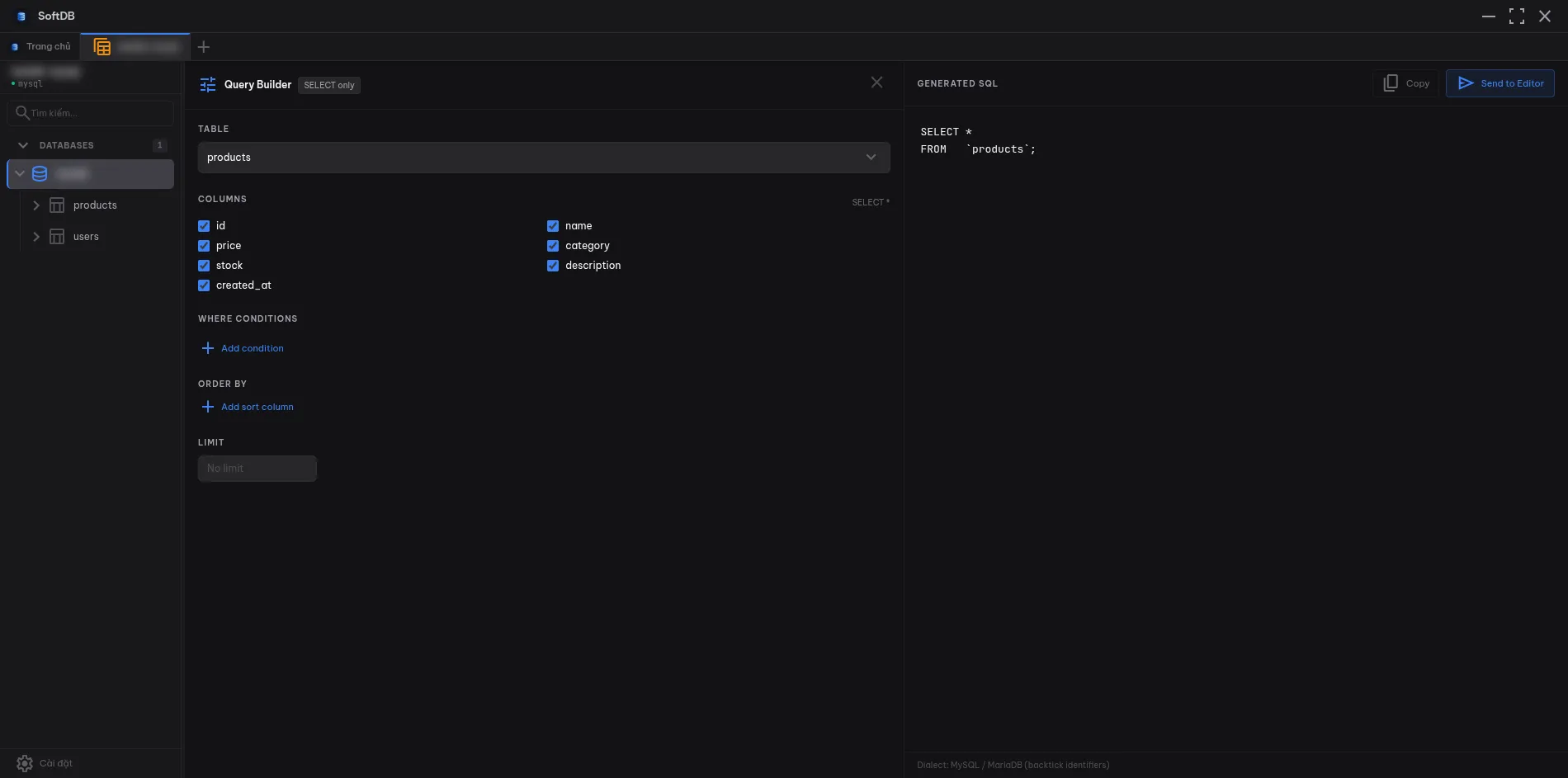
The Query Builder gives you a point-and-click interface for constructing SELECT queries. No SQL knowledge required — pick a table, choose your columns, add filters, and SoftDB writes the query for you. The generated SQL updates live as you make changes, so you always see exactly what will run.
Opening the Query Builder
Section titled “Opening the Query Builder”Click the tune icon (⚙) in the SQL Editor toolbar to open the Query Builder panel. It slides in alongside the editor, splitting the view into a configuration pane on the left and a live SQL preview on the right.
The panel is labeled SELECT only — it builds read-only queries. For mutations, write SQL directly in the editor.
Building a Query
Section titled “Building a Query”1. Select a table
Section titled “1. Select a table”The first dropdown lists every table in the current connection. Pick one and the builder loads its columns automatically.
2. Choose columns
Section titled “2. Choose columns”All columns are checked by default, which produces SELECT *. Uncheck any column to exclude it from the result. The header shows how many columns are selected and a reset to * link to restore the default.
The column list scrolls if your table has many fields, so you can work with wide schemas without losing context.
3. Add WHERE conditions
Section titled “3. Add WHERE conditions”Click Add condition to filter rows. Each condition row has three parts:
- Column — pick from the table’s columns
- Operator — choose from
=,!=,>,<,>=,<=,LIKE,IN,IS NULL,IS NOT NULL - Value — type the comparison value (hidden automatically for
IS NULL/IS NOT NULL)
When you have two or more conditions, a toggle button appears in the section header. Click it to switch between AND (all conditions must match) and OR (any condition matches). The label on each row updates to show the active logical operator.
Operator tips:
LIKE— use%as a wildcard, e.g.%smith%IN— enter a comma-separated list, e.g.1, 2, 3- Numeric values are passed unquoted; text values are automatically single-quoted and escaped
4. Sort results (ORDER BY)
Section titled “4. Sort results (ORDER BY)”Click Add sort column to add an ORDER BY clause. Each sort row lets you pick a column and choose ASC ↑ or DESC ↓. Add multiple rows to sort by several columns in priority order.
5. Limit rows
Section titled “5. Limit rows”Enter a number in the LIMIT field to cap how many rows are returned. Leave it blank for no limit.
Using the Generated SQL
Section titled “Using the Generated SQL”The right pane shows the formatted SQL as you build. Two buttons sit in the top-right corner:
- Copy — copies the SQL to your clipboard
- Send to Editor — inserts the SQL into the Monaco editor, where you can run it, tweak it, or save it as a snippet
The footer shows the active SQL dialect: MySQL and MariaDB use backtick identifiers (`column`), while PostgreSQL, SQLite, and Redshift use double-quote identifiers ("column").