AI Assistant
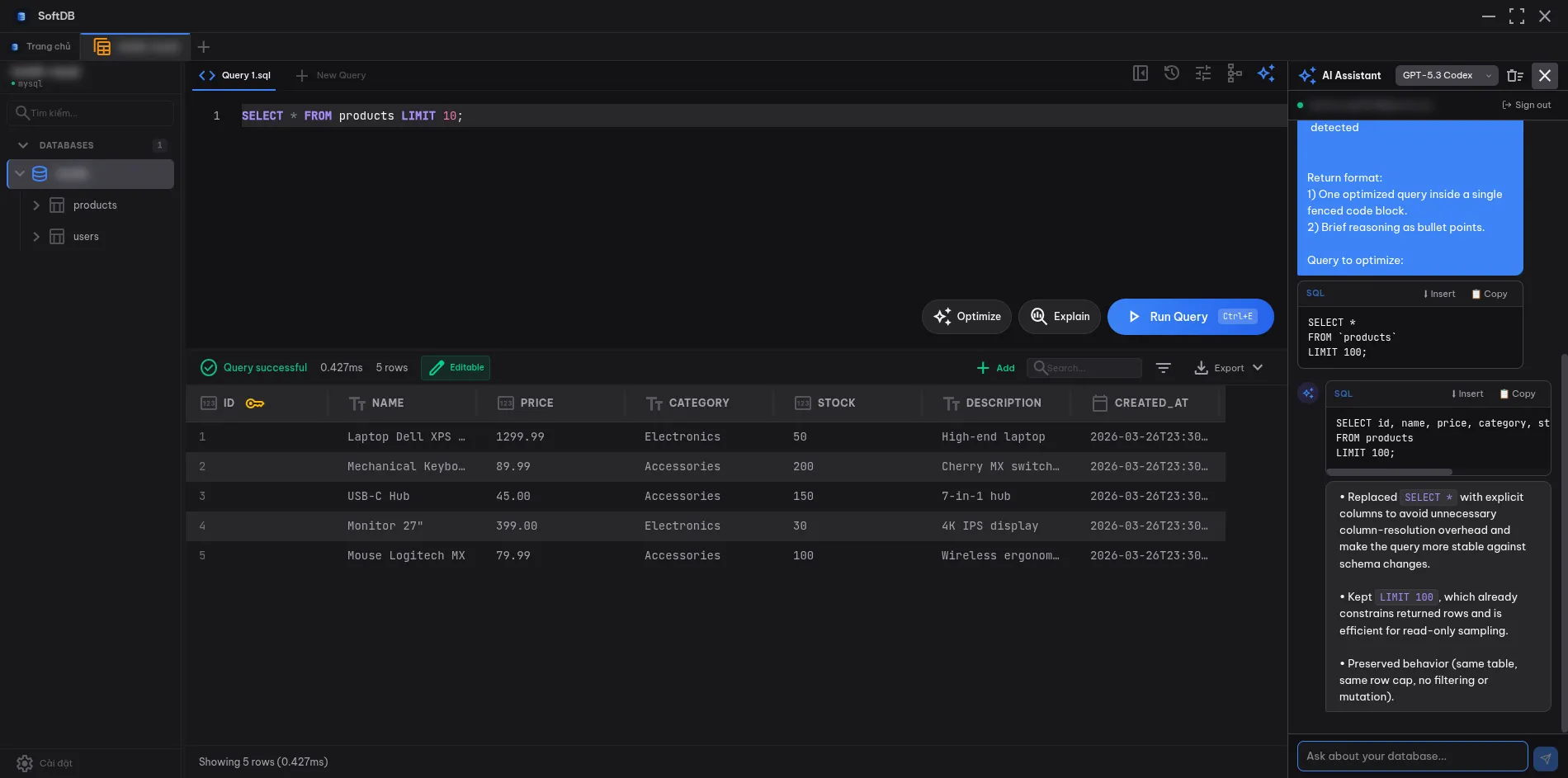
SoftDB includes a built-in AI chat panel that understands your database schema. Ask it to write queries, explain table relationships, suggest indexes, or optimize slow SQL — all without leaving the app.
OpenAI Integration
Section titled “OpenAI Integration”The AI Assistant is powered by OpenAI. Sign in with your ChatGPT account using OAuth — no API key needed. SoftDB uses OAuth PKCE so your credentials stay secure. Your tokens are stored encrypted on your machine and never sent to any SoftDB server.
Available models include GPT-5.3 Codex (default, optimized for SQL), GPT-5.4, GPT-5, GPT-5 Mini, and o4-mini for reasoning tasks.
-
Click the ✨ sparkle icon in the top-right toolbar to open the AI panel.
-
Click Sign in with ChatGPT and complete the browser OAuth flow. Your tokens are encrypted and stored locally.
-
Select a model from the dropdown in the panel header. The dropdown groups models by category: Code, General, Fast, and Reasoning.
Using the Chat
Section titled “Using the Chat”Type your question in the input box and press Enter to send. The AI responds with streaming text — you see the answer appear word by word rather than waiting for the full response.
Schema context is automatic. When you send a message, SoftDB injects your current connection’s schema (table names, column names, and types) into the system prompt. The AI knows what tables exist and can write accurate queries without you having to describe your schema.
Suggestions on the welcome screen give you quick starting points: “Show me all tables”, “Write a JOIN query for…”, and “Optimize this query”. Click any suggestion to pre-fill the input.
Stop streaming at any time by clicking the stop button that appears while the AI is responding.
Code Insertion
Section titled “Code Insertion”When the AI responds with a SQL code block, an Insert button appears in the code block header. Click it to send the generated SQL directly into the SQL Editor — no copy-pasting needed.
The Insert button shows a checkmark briefly after clicking to confirm the transfer.
Query Optimization
Section titled “Query Optimization”Press Ctrl+Shift+O (Cmd+Shift+O on Mac) while in the SQL Editor to send your current query to the AI with an optimization prompt. The AI panel opens automatically and the query is pre-loaded with a request to suggest improvements.
This is the fastest way to get index suggestions, rewrite advice, or explanations of why a query might be slow.
Per-Connection History
Section titled “Per-Connection History”Chat history is isolated per connection. Switching to a different connection tab starts a fresh conversation. Your history for each connection persists across app restarts.
Clear the current conversation with the trash icon in the panel header.
Model Selection
Section titled “Model Selection”The model dropdown in the panel header lets you switch models mid-conversation. Models are grouped:
| Category | Models |
|---|---|
| Code | GPT-5.3 Codex (default), GPT-5.4 |
| General | GPT-5, GPT-5 Mini |
| Fast | GPT-5 Mini |
| Reasoning | o4-mini |
The selected model is saved per connection, so you can use a fast model for one database and a more capable one for another.