Settings Overview
The Settings panel is your control center for every aspect of SoftDB’s behavior. Open it by clicking the gear icon in the bottom-left corner of the Connection Hub, or from any active workspace tab.
Navigating Settings
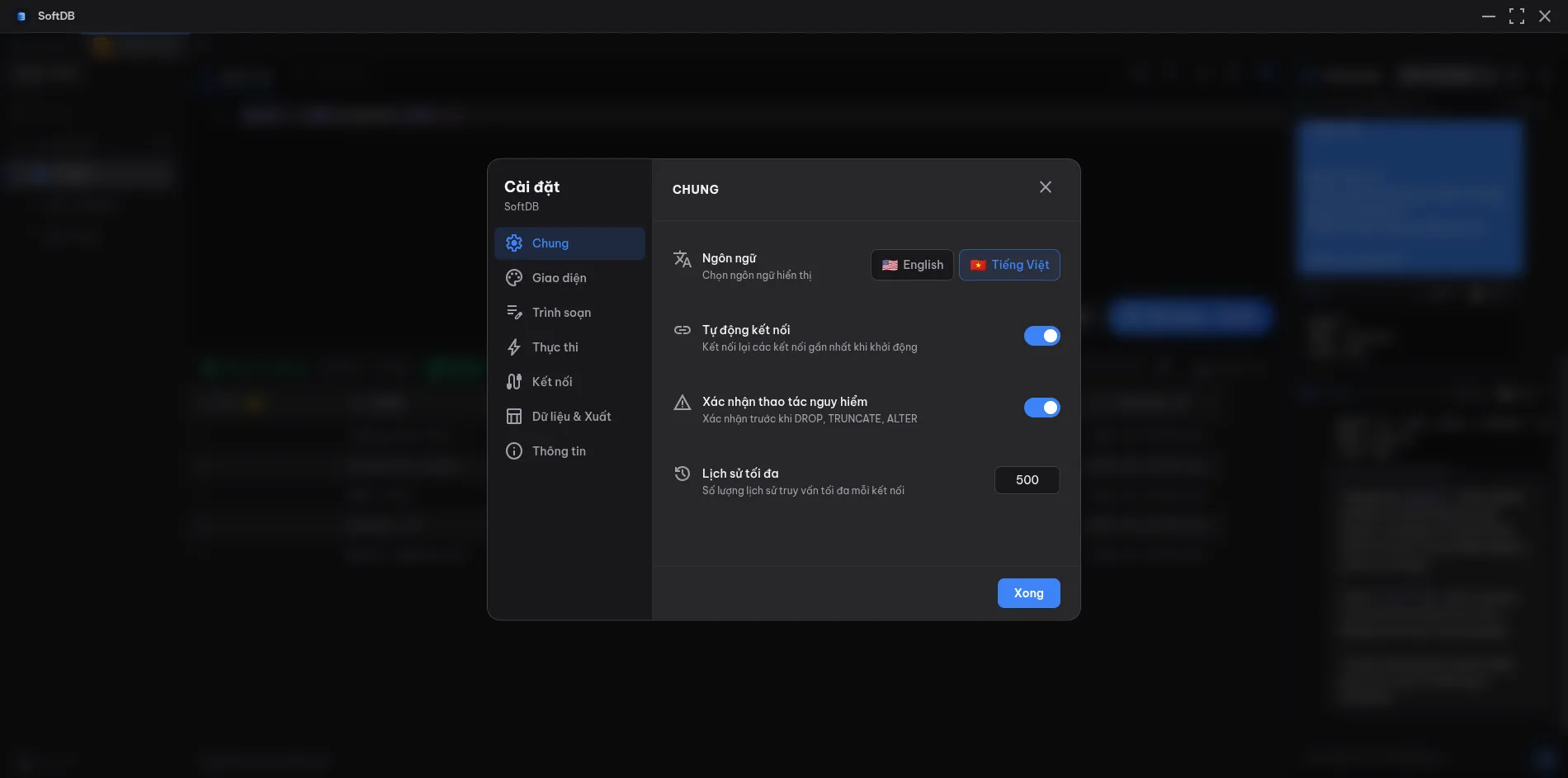
Section titled “Navigating Settings”The modal has a sidebar on the left listing each category. Click any category to jump to its options. When you’re done, click Done or press Escape to close.
Settings Categories
Section titled “Settings Categories”| Category | What it controls |
|---|---|
| General | Language, auto-connect on startup, dangerous-action confirmations, query history limit |
| Appearance | Theme (dark/light variants), font size, row density in the data grid |
| Editor | Tab size, word wrap, line numbers, auto-uppercase SQL keywords |
| Execution | Query timeout, default row limit, auto-limit, mutation confirmations, risk warnings |
| Connection | Connection timeout for new database connections |
| Data | NULL display style, date format, export format, CSV delimiter |
| About | App version, keyboard shortcuts reference, supported databases |
General
Section titled “General”The General section covers app-wide behavior that doesn’t fit neatly into a single feature.
Language switches the UI between English and Vietnamese. The change takes effect immediately without a restart.
Auto-connect controls whether SoftDB automatically reconnects to your last-used connection when the app opens. It’s off by default so you always start from the Connection Hub.
Confirm dangerous operations shows a confirmation dialog before running DROP, TRUNCATE, or other destructive statements. Enabled by default.
Max history sets how many query history entries SoftDB keeps per connection. The default is 500. Older entries are trimmed automatically once the limit is reached.
Appearance
Section titled “Appearance”Controls the visual presentation of the app. See Appearance for a full breakdown.
- Theme — choose from multiple dark and light themes. The active theme is highlighted with a checkmark.
- Font size — adjusts the base font size for the editor and data grid (10–24 px, default 13 px).
- Row density — sets the row height in the data grid: Compact, Normal, or Comfortable.
Editor
Section titled “Editor”These settings control the Monaco SQL editor embedded in every workspace tab.
Tab size sets how many spaces a Tab keypress inserts. Options are 2 or 4 spaces (default: 2).
Word wrap toggles whether long lines wrap inside the editor viewport or scroll horizontally. Off by default.
Line numbers shows or hides the gutter with line numbers. On by default.
Auto-uppercase automatically converts SQL keywords to uppercase as you type — select becomes SELECT, from becomes FROM, and so on. Off by default.
Execution
Section titled “Execution”These settings govern how queries run and what safety checks fire before execution.
Query timeout is the maximum number of seconds SoftDB waits for a query to complete before cancelling it. Default is 30 seconds. Raise it for long-running analytical queries.
Default limit is the row count used when you run a SELECT without an explicit LIMIT. Default is 100.
Auto-limit automatically appends LIMIT <default limit> to any SELECT statement that doesn’t already have one. Off by default — enable it if you frequently query large tables.
Confirm mutations shows a confirmation dialog before executing INSERT, UPDATE, or DELETE statements. Off by default.
Warn on query risks shows a warning banner when SoftDB detects potentially dangerous patterns in your query (e.g., a DELETE without a WHERE clause). On by default.
Warn on limited query analysis shows a notice when SoftDB’s static analysis can’t fully inspect a query — for example, complex CTEs or dynamic SQL. On by default.
Connection
Section titled “Connection”Connection timeout is how long SoftDB waits when establishing a new database connection before giving up. Default is 15 seconds. Increase it for slow networks or databases behind SSH tunnels.
These settings affect how data is displayed and exported.
NULL display controls how NULL values appear in the data grid:
- Badge (default) — a small grey
NULLbadge - Italic — the text null in italic
- Dash — an em dash (—)
Date format controls how date and timestamp columns are rendered:
- ISO 8601 (default) —
2024-03-15T10:30:00Z - US —
03/15/2024 - EU —
15/03/2024 - Relative —
2 hours ago
Export format sets the default file format when you export query results. Options are CSV (default), JSON, and TSV.
CSV delimiter is the character used to separate fields in CSV exports. Default is a comma (,). Change it to a semicolon for European locales or a tab for TSV-style output.
The About section shows the current app version and a quick-reference table of keyboard shortcuts. It also lists every supported database engine with its status indicator.
No settings are configurable here — it’s purely informational.